


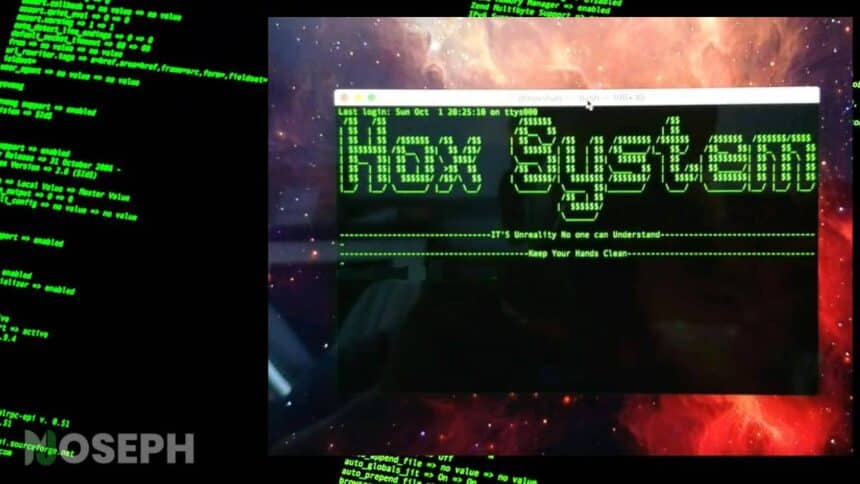
When setting up a server, I always customize the Message of the Day (MOTD), which is the message users see when they log into the system via a terminal or SSH. The default message often lacks personality, so I like to add something that reflects the server’s purpose or the organization behind it.
In this guide, I will show you how to customize the MOTD on your Linux server, specifically for AlmaLinux 8, Ubuntu (versions 20.04 and later), and Debian. Although these distributions have some differences, they all share a similar approach to handling the MOTD. The process is straightforward, and I will highlight any key distinctions where necessary to ensure the steps work smoothly across all three.
Customizing the Linux MOTD screen is more than just a welcome message. It is an opportunity to display useful information, system statistics, or even a bit of ASCII art. By the end of this guide, you will have a MOTD that not only serves a practical purpose but also adds a touch of personality to your server.
What is the Message of the Day (MOTD) in Linux?
The Message of the Day (MOTD) in Linux is a brief, customizable message that appears when users log into the system, usually via a terminal or SSH. System administrators use it to share important information, system updates, or welcome messages.
The MOTD can include a variety of content, such as system statistics, important notices, or even fun elements like ASCII art. For example, a typical MOTD might look like this:
Welcome to Joseph Matino!
Today is: $(date)
This message greets users with a welcome note and displays the current date. System administrators can customize the MOTD to include any information they deem important for users to see upon logging in.
1. How To Create Custom MOTD Screen on AlmaLinux 8
On AlmaLinux 8, customizing the Message of the Day (MOTD) can transform the user login experience from generic to personalized. By displaying dynamic information, ASCII art, or a custom welcome message, you can make your server’s login screen both informative and engaging. Follow these steps to create your custom MOTD on AlmaLinux 8:
Step 1: Create a New Script
First, create a new script in the /etc/profile.d/ directory. This script will execute automatically whenever a user logs in.
sudo nano /etc/profile.d/slambo-motd.sh
Step 2: Add Your Custom Message and ASCII Art
With the script file open in the nano editor, add your custom message and ASCII art. Here’s an example you might use:
#!/bin/bash

# Define colors
GREEN='\033[0;32m'
NC='\033[0m' # No Color

# Print the welcome message and ASCII art
echo -e "${GREEN}Welcome to the SLAMBO Server!${NC}"
echo -e "${GREEN}Managed by Joseph Matino${NC}\n"
echo -e "${GREEN}"
cat << "EOF"
  _____ _               __  __ ____   ____    _______ _____ _____   _____
  / ____| |        /\   |  \/  |  _ \ / __ \  |__   __|_   _|  __ \ / ____|
 | (___ | |       /  \  | \  / | |_) | |  | |    | |    | | | |__) | (___
  \___ \| |      / /\ \ | |\/| |  _ <| |  | |    | |    | | |  ___/ \___ \
  ____) | |____ / ____ \| |  | | |_) | |__| |    | |   _| |_| |     ____) |
 |_____/|______/_/    \_\_|  |_|____/ \____/     |_|  |_____|_|    |_____/

EOF
echo -e "${NC}\n"
Step 3: Save and Make the Script Executable
After adding your custom content, save the script and make it executable so it runs each time a user logs in.
sudo chmod +x /etc/profile.d/slambo-motd.sh
Step 4: Test Your New MOTD
To see your new MOTD in action, log out and log back in, or simply open a new terminal session. Your custom message and ASCII art should now display upon login.
Customizing the MOTD on AlmaLinux 8 is a simple yet effective way to personalize the user experience on your server. By following these steps, you can ensure that every login greets users with relevant information and a touch of creativity.
2. How To Create a Custom MOTD Screen on Ubuntu (20.04 to 23.04)
For Ubuntu users, adding a custom Message of the Day (MOTD) can give your server a more personalized touch. The MOTD on Ubuntu is managed by scripts in the /etc/update-motd.d/ directory. Follow these steps to create your own MOTD for Ubuntu versions 20.04 to 23.04.
Step 1: Access the MOTD Scripts Directory
First, go to the directory where the MOTD scripts are stored:
cd /etc/update-motd.d/
Step 2: Disable Default MOTD Scripts (Optional)
If you want to replace the default MOTD, you can disable the existing scripts by renaming them:
sudo mv 00-header 00-header.disabled
sudo mv 10-help-text 10-help-text.disabled
Step 3: Create Your Custom MOTD Script
Create a new script that will display your custom message:
sudo nano slambo-custom-motd
Step 4: Add Your Custom Message
In the nano editor, add your message and any ASCII art. Here’s an example:
#!/bin/bash

# Define colors
GREEN='\033[0;32m'
NC='\033[0m' # No Color

# Print the welcome message and ASCII art
echo -e "${GREEN}Welcome to the SLAMBO Server!${NC}"
echo -e "${GREEN}Managed by Slambo Tips${NC}\n"
echo -e "${GREEN}"
cat << "EOF"

                                                     .-'''-.
                                                    '   _    \
 __  __   ___                     .--.   _..._    /   /` '.   \
|  |/  `.'   `.                   |__| .'     '. .   |     \  '
|   .-.  .-.   '              .|  .--..   .-.   .|   '      |  '
|  |  |  |  |  |    __      .' |_ |  ||  '   '  |\    \     / /
|  |  |  |  |  | .:--.'.  .'     ||  ||  |   |  | `.   ` ..' /
|  |  |  |  |  |/ |   \ |'--.  .-'|  ||  |   |  |    '-...-'`
|  |  |  |  |  |`" __ | |   |  |  |  ||  |   |  |
|__|  |__|  |__| .'.''| |   |  |  |__||  |   |  |
                / /   | |_  |  '.'    |  |   |  |
                \ \._,\ '/  |   /     |  |   |  |
                 `--'  `"   `'-'      '--'   '--'


EOF
echo -e "${NC}\n"
Step 5: Save and Make the Script Executable
Save your script and make it executable so that it runs when users log in:
sudo chmod +x slambo-custom-motd
Step 6: Check Your Custom MOTD
Log out and log back in, or open a new terminal session to see your custom MOTD displayed.
This simple customization allows you to add a personal touch to your Ubuntu server, making it more engaging for users who log in.
3. How To Create a Custom MOTD Screen on Debian
Customizing the Message of the Day (MOTD) on Debian can make your server more welcoming and informative. You can display both dynamic system information and a personalized message. Follow these steps to create a custom MOTD on your Debian server.
Step 1: Create a New Script for Dynamic MOTD Content
Start by creating a new script in the /etc/profile.d/ directory. This script will generate dynamic content for your MOTD.
sudo nano /etc/profile.d/custom-motd.sh
Step 2: Add Dynamic Information to the Script
In the nano editor, insert the following content to display dynamic system information and a personalized message. This example also includes ASCII art for added flair:
#!/bin/bash

# System information variables
HOSTNAME=$(hostname)
DATE=$(date +"%A, %d %B %Y")
KERNEL=$(uname -r)
UPTIME=$(uptime -p)
USERS=$(who | wc -l)

# ASCII art logo
echo "Welcome to Debian Server - Managed by Slambo Tips"
echo "  ____  _____  _    _ _______        _____ _______ "
echo " |  _ \|  __ \| |  | |__   __|/\    / ____|__   __|"
echo " | |_) | |  | | |  | |  | |  /  \  | (___    | |   "
echo " |  _ <| |  | | |  | |  | | / /\ \  \___ \   | |   "
echo " | |_) | |__| | |__| |  | |/ ____ \ ____) |  | |   "
echo " |____/|_____/ \____/   |_/_/    \_\_____/   |_|   "

# Display system information
echo "Hostname    : $HOSTNAME"
echo "Date        : $DATE"
echo "Kernel      : $KERNEL"
echo "Uptime      : $UPTIME"
echo "Users Online: $USERS"
echo "Enjoy your session!"
Step 3: Save and Make the Script Executable
After adding your content, save the script and make it executable so it runs automatically at login.
sudo chmod +x /etc/profile.d/custom-motd.sh
Step 4: Add Static Content (Optional)
If you want to include static information, like a permanent message or contact details, create or edit the /etc/motd file:
sudo nano /etc/motd
Include any static content you’d like users to see every time they log in.
Step 5: Test Your Custom MOTD
To see your new MOTD in action, log out and log back in, or open a new terminal session. Your custom MOTD should display both the dynamic and static content.
By setting up this custom MOTD, you make your Debian server more welcoming and informative, providing users with useful system information as they log in.
What is the MOTD File Format?
The Message of the Day (MOTD) file in Linux is a plain text file, which means it is easy to customize with any text editor. Located at /etc/motd, this file is used to display important information, notices, or instructions to users as soon as they log in.
What is the Message of the Day in SSH?
When users connect to a server via SSH, they see a message similar to the MOTD shown during a regular login. This message is crucial for sharing information or warnings with remote users, and it can be customized to provide critical details or reminders for those accessing the server remotely.
Wrapping Up
Customizing the Message of the Day (MOTD) on your Linux server is an effective way to keep users informed every time they log in, whether locally or via SSH. By tailoring the MOTD to include important messages, reminders, or warnings, you ensure that key information is always visible and up to date.
If this guide was helpful, or if you have any questions or thoughts, feel free to leave a comment below. Your input helps us all learn and improve together.