



When managing client servers, a common issue is emails not reaching their intended destination. They often end up in spam folders or fail to send. This problem can be frustrating and time-consuming to resolve.
One effective solution is using SMTP email relay. It ensures that emails from your server or your clients’ emails are delivered to the inbox, which is particularly helpful if your hosting provider blocks port 25.
How CyberPanel Improves Email Deliverability
CyberPanel, built on OpenLiteSpeed, offers a user-friendly experience along with comprehensive email management tools.
Despite these strong points, users sometimes face issues with email deliverability, like emails being marked as spam or not delivered. Addressing these issues is crucial for reliable email delivery.
By fine-tuning CyberPanel’s email settings and incorporating an SMTP Relay service, you can significantly enhance email deliverability.
These adjustments help ensure that your emails consistently reach the inbox, minimizing complications and improving the overall reliability of your email communications.
The Role of SMTP Relay in Email Deliverability
SMTP Relay plays a key role in improving email deliverability. By acting as an intermediary between your email server and the recipient’s email server, an SMTP Relay service helps ensure that emails are properly authenticated and routed. This reduces the likelihood of emails being marked as spam or rejected.
Using an SMTP Relay service is especially useful when dealing with hosting providers that block port 25, which is commonly used for sending emails. The relay service can use alternative ports to send emails, bypassing these restrictions and ensuring reliable delivery.
SMTP Relay services also offer security features like encryption and advanced authentication methods. These features help protect your email communications from being intercepted or tampered with during transmission.
Integrating an SMTP Relay service with CyberPanel can improve the reliability and success rate of your email deliveries, ensuring that your messages reach their intended recipients without issues.
SMTP Relay Providers
Before we get into setting up SMTP Relay in CyberPanel, where I’ll use Brevo for demonstration, it’s crucial to acknowledge the variety of SMTP Relay providers available, suited to different needs.
Here’s a brief overview table of some SMTP relay providers that i have atleast used and tested before:
| Provider | Reliability | Ease of Use | Feature Set | Cost Effectiveness | Ideal for |
|---|---|---|---|---|---|
| Brevo | High | Excellent | Focus on deliverability | High | Small to Medium Enterprises |
| SendGrid | Very High | Good | Advanced analytics | Moderate | Businesses of all sizes |
| Mailgun | High | Moderate | Strong API support | Moderate | Developers needing custom integrations |
| Amazon SES | Very High | Variable | High deliverability | Low | Large volume senders |
| Postmark | High | Excellent | Transactional emails | Moderate | Businesses needing reliable transactional emails |
| SparkPost | High | Good | Marketing automation | Moderate | Marketing teams |
| Mandrill | Very High | Good | Mailchimp integration | High | Mailchimp users |
| SMTP2GO | High | Excellent | Strong deliverability | Moderate | Businesses needing reliable delivery |
Configuring SMTP Relay in CyberPanel with Brevo
Getting SMTP Relay up and running in CyberPanel is straightforward. It mainly requires tweaking some settings in your CyberPanel dashboard to ensure emails are delivered efficiently.
You’ll be entering the SMTP server details provided by Brevo and your authentication credentials into CyberPanel.
This step is crucial for setting up a smooth link between CyberPanel and Brevo, helping your emails reach their intended recipients seamlessly.
How To Get Brevo API Key
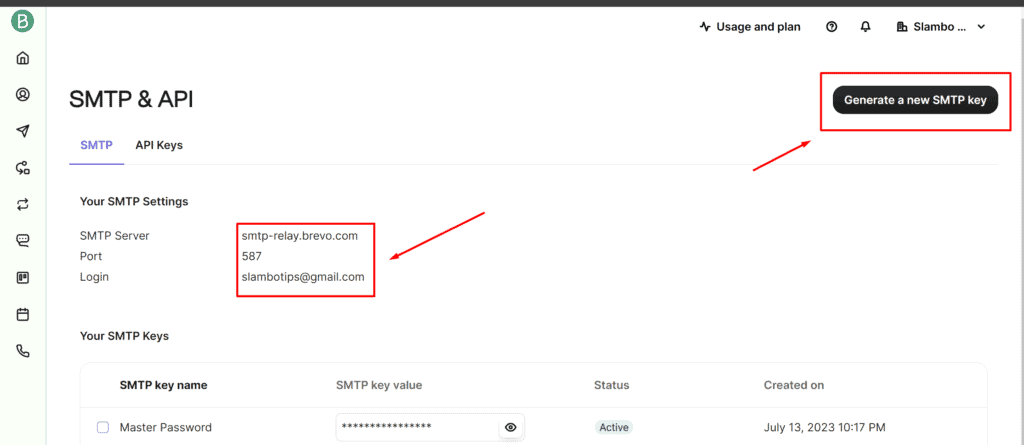
To get your Brevo API key, you’ll need to log in to your Brevo account. Navigate to the API section in your dashboard, where you can generate or view your existing API keys. If you’re unsure, Brevo’s support documentation or their customer service can guide you through this process.
Before configuring Postfix for SMTP Relay with Brevo, it’s crucial to update your domain’s DNS records. Brevo will provide you with specific text entries to add to your DNS records to help authenticate your emails, reduce spam flags, and improve deliverability.
These entries typically include SPF, DKIM, and DMARC records. Here’s a general guide on what to do:
- SPF (Sender Policy Framework): This DNS record helps to verify that the sending server is authorized to send emails on behalf of your domain. Brevo will provide you with a specific SPF record entry, which usually looks something like
"v=spf1 include:_spf.brevo.com ~all". This entry should be added as a TXT record for your domain. - DKIM (DomainKeys Identified Mail): DKIM adds a digital signature to emails sent from your domain, which recipient servers can use to verify that the email hasn’t been tampered with in transit. Brevo will give you a unique DKIM value to add to your DNS as a TXT record. The DKIM record is often given in the form of a selector (a subdomain) and a public key.
- DMARC (Domain-based Message Authentication, Reporting, and Conformance): DMARC uses SPF and DKIM to determine the authenticity of an email message. Brevo will suggest a DMARC record, which might look like
"v=DMARC1; p=none; rua=mailto:dmarc@yourdomain.com". This should also be added as a TXT record to your domain’s DNS.
DNS Records Setup for Achieving Perfect Email Deliverability Score
For optimal email deliverability scores, ensure your DNS records are correctly set up as follows:
| Type | Name | Content | TTL | Proxy Status |
|---|---|---|---|---|
| A | yourdomain.com | IP_ADDRESS | 3600 | DNS only |
| A | IP_ADDRESS | 3600 | DNS only | |
| AAAA | yourdomain.com | IPv6_ADDRESS | 3600 | DNS only |
| AAAA | IPv6_ADDRESS_MAIL | 3600 | DNS only | |
| CNAME | www | yourdomain.com | 3600 | DNS only |
| CNAME | www.mail | mail.yourdomain.com | 3600 | DNS only |
| MX | yourdomain.com | mail.yourdomain.com | 3600 | 10, DNS only |
| MX | mail.mail.yourdomain.com | 3600 | 10, DNS only | |
| TXT | default._domainkey | v=DKIM1; k=rsa; p=DKIM_KEY | 3600 | DNS only |
| TXT | _dmarc | v=DMARC1; p=none; | 3600 | DNS only |
| TXT | _dmarc.mail | v=DMARC1; p=none; | 3600 | DNS only |
| TXT | _domainkey | t=y; o=~; | 3600 | DNS only |
| TXT | _domainkey.mail | t=y; o=~; | 3600 | DNS only |
| TXT | yourdomain.com | v=spf1 include:_spf.yourmailprovider.com ~all | 3600 | DNS only |
| TXT | v=spf1 include:_spf.mail.yourdomain.com ~all | 3600 | DNS only |
do not forget to replace the placeholders with the actual values provided by your SMTP email Provider.
After updating your DNS records according to the table above, proceed with configuring Postfix for SMTP Relay as detailed in the following steps.
This initial setup is crucial for enhancing your email deliverability and achieving better email scores, ideally aiming for 10/10.
Step 1: Configuring Postfix for SMTP Relay
First things first, you need to configure Postfix, the mail transfer agent, to use Brevo’s SMTP Relay.
Open the main configuration file of Postfix by running this command in the terminal:
nano /etc/postfix/main.cf
In the main.cf file, you’ll need to add the following lines. This tells Postfix to use Brevo’s SMTP server with TLS encryption and SASL authentication:
relayhost = [smtp-relay.brevo.com]:587
smtp_use_tls = yes
smtp_sasl_auth_enable = yes
smtp_sasl_security_options = noanonymous
smtp_sasl_password_maps = hash:/etc/postfix/sasl_passwd
smtp_tls_CAfile = /etc/ssl/certs/ca-certificates.crt
Save and close the file.
Step 2: Setting Up the SASL Password File
Next, you need to set up the SASL password file. This file will store your authentication credentials for Brevo’s SMTP service.
Create and open the SASL password file by running:
nano /etc/postfix/sasl_passwd
In this file, enter your SMTP Relay credentials in the following format:
[smtp-relay.brevo.com]:587 YourBrevoEmailAddres:YourBrevoAPIKey
Replace YourBrevoEmailAddress with your actual Brevo email address and YourBrevoAPIKey with the API key provided by Brevo. Save and close the file.
Step 3: Securing Your Credentials
It’s crucial to secure your credentials. Let’s encrypt the password file and set the right permissions.
Encrypt the password file by running:
postmap /etc/postfix/sasl_passwd
Change the ownership and permissions of the password files to secure them:
chown root:postfix /etc/postfix/sasl_passwd*
chmod 640 /etc/postfix/sasl_passwd*
Step 4: Restart and Enable Postfix
Finally, apply the changes by restarting and enabling Postfix:
systemctl restart postfix && systemctl enable postfix
Configuring DNS Records for Improved Email Deliverability
Proper configuration of DNS records is crucial for the success of SMTP Relay. These records help recipient servers recognize and trust your emails, thereby improving their deliverability. Ensuring accurate DNS settings is a key step in optimizing your email services.
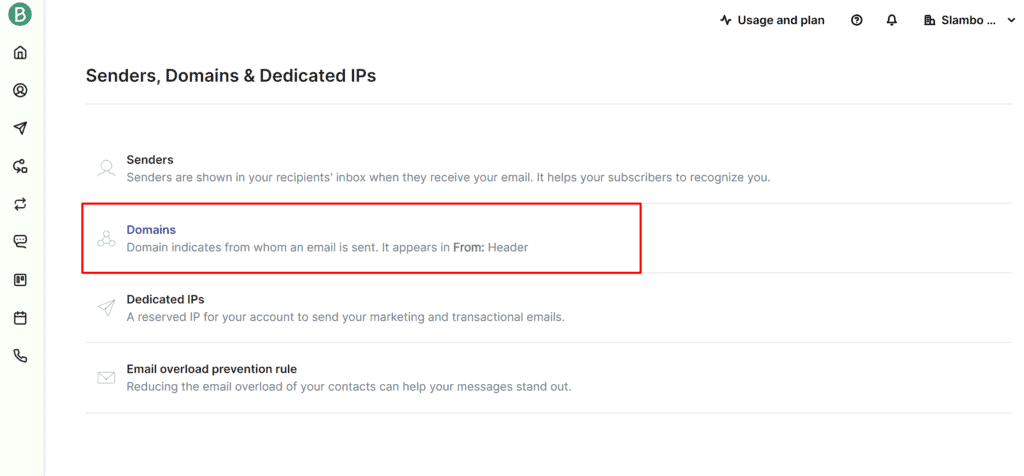
For example, you’ll need to add TXT records to your domain’s DNS settings. These records include SPF and DKIM, which are essential for authenticating your emails and improving their deliverability.
Troubleshooting SMTP Relay Issues in CyberPanel
Even with a proper setup, you may encounter issues such as authentication errors or misconfigured settings. Familiarizing yourself with common SMTP Relay problems and their solutions is essential for maintaining uninterrupted email communication.
Check the logs for any error messages, as they can provide clues to the underlying problem, whether it’s incorrect credentials, network issues, or misconfigured settings. Addressing these issues promptly ensures that your email services remain reliable.
Regular maintenance and monitoring of your SMTP Relay setup are necessary to prevent future issues and ensure ongoing email deliverability. Keeping your settings up to date and tracking email performance metrics are crucial for optimal email management.
Stay informed about any updates or changes to your SMTP Relay service. Regularly reviewing your email delivery reports and making necessary adjustments to your setup can help maintain high deliverability rates.
Exploring Alternative Solutions to SMTP Relay
While SMTP Relay is an effective way to enhance email functionality in CyberPanel, there are other methods worth exploring. Adjusting server settings or using different email protocols can also contribute to improved email deliverability. Consider these alternatives to find the best solution for your needs.
Tweaking your email server’s configuration to optimize performance and security can aid in better email deliverability. Additionally, exploring alternative email protocols like IMAP or POP3 can provide different advantages depending on your specific requirements.
Best Practices for SMTP Relay in CyberPanel
To maximize the benefits of SMTP Relay in CyberPanel, adhere to best practices. This includes using recommended settings, regularly monitoring email deliverability metrics, and staying informed about updates and advancements in email technology.
Implementing security measures such as encryption and authentication protocols is crucial for maintaining the integrity of your email communications. Regularly updating your CyberPanel and SMTP Relay service to the latest versions ensures you have the latest features and security updates.
Wrapping Up
By configuring CyberPanel to use an SMTP Relay service, you can significantly improve your email deliverability, ensuring your emails reach their destination securely and efficiently. Test your new setup by sending a test email. If you encounter any issues, double-check the configurations or reach out to your SMTP Relay service’s support for assistance.
If you have any questions or feedback, feel free to leave a comment below. I would love to hear about your experiences and any tips you might have for optimizing email delivery in CyberPanel.