

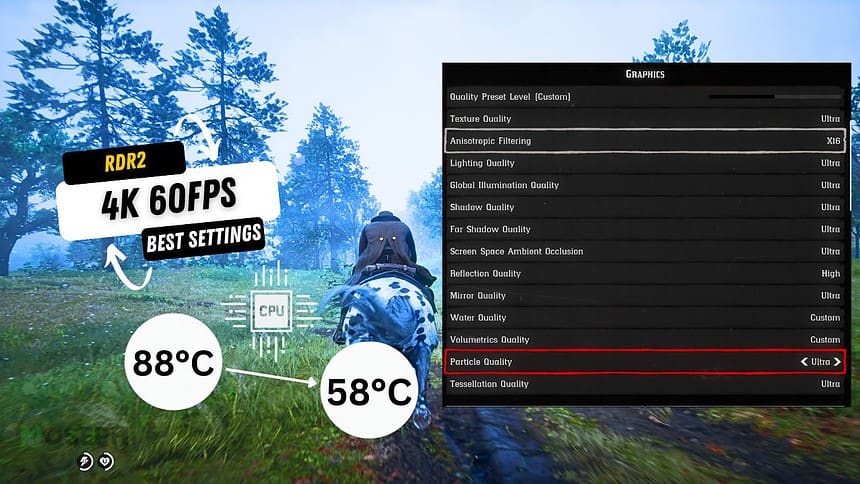
Playing Red Dead Redemption 2 at 4K with 60FPS can be challenging for any gaming setup, but with the right settings, you can achieve smooth gameplay while keeping your CPU temperatures under control. After extensive testing and adjustments, I have found the optimal configuration that balances performance and visual quality. Here’s how you can do it too.
Red Dead Redemption 2 Optimized 4K Graphics Settings
| Setting Category | Setting | Recommended Value |
|---|---|---|
| Resolution and Screen | Resolution | 3840×2160 (4K) |
| Resolution and Screen | Refresh Rate | 60Hz |
| Resolution and Screen | Screen Type | Fullscreen |
| Resolution and Screen | VSync | Off |
| Resolution and Screen | Triple Buffering | Off |
| Resolution and Screen | NVIDIA DLSS | Quality |
| Graphics Quality | Texture Quality | High |
| Graphics Quality | Lighting Quality | High |
| Graphics Quality | Global Illumination Quality | High |
| Graphics Quality | Shadow Quality | High |
| Graphics Quality | Far Shadow Quality | Medium |
| Graphics Quality | SSAO (Ambient Occlusion) | High |
| Graphics Quality | Reflection Quality | Medium |
| Graphics Quality | Mirror Quality | Medium |
| Graphics Quality | Water Quality | High |
| Graphics Quality | Volumetrics Quality | Medium |
| Graphics Quality | Particle Quality | High |
| Graphics Quality | Tessellation Quality | High |
| Advanced Graphics | Graphics API | Vulkan |
| Advanced Graphics | Near Volumetric Resolution | Medium |
| Advanced Graphics | Far Volumetric Resolution | Medium |
| Advanced Graphics | Volumetric Lighting Quality | High |
| Advanced Graphics | Unlocked Volumetric Raymarch Resolution | Off |
| Advanced Graphics | Particle Lighting Quality | High |
| Advanced Graphics | Soft Shadows | High |
| Advanced Graphics | Grass Shadows | Medium |
| Advanced Graphics | Long Shadows | Off |
| Advanced Graphics | Full Resolution SSAO | Off |
| Advanced Graphics | Water Reflection Quality | Medium |
| Advanced Graphics | Water Refraction Quality | Medium |
| Advanced Graphics | Tree Tessellation | Off |
These settings ensure that Red Dead Redemption 2 looks its best while maintaining a smooth 60FPS experience at 4K. If you need more FPS, consider lowering settings like Grass Shadows and Tree Quality from Ultra to High, which will give you a performance boost without significantly reducing visual quality.
How To Keep Your CPU Cool While Playing Red Dead Redemption 2 at 4K 60FPS
Playing Red Dead Redemption 2 at 4K can push your CPU hard, so managing heat is important to keep your gameplay smooth. Here’s how to keep your CPU temperature down:
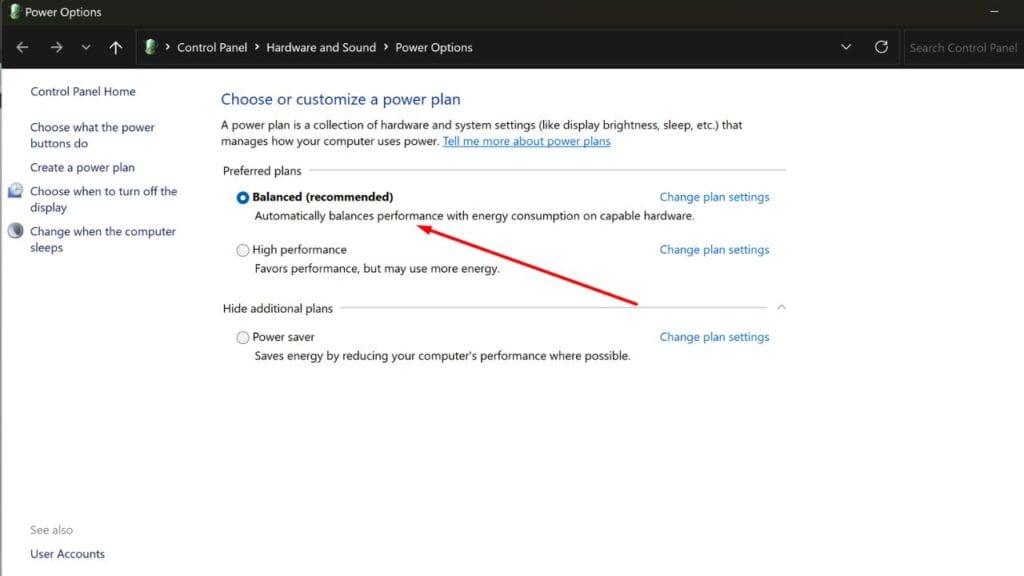
Start by adjusting your power settings. Set your system to the Balanced power plan instead of High Performance. This allows your CPU to use power based on what’s needed, helping to reduce unnecessary heat. You can also fine-tune the processor power settings by lowering the Minimum processor state to 5-10% and keeping the Maximum at 100%. This ensures your CPU runs efficiently without drawing extra power when it’s not required.
Reducing the load from background tasks also helps. In Task Manager, turn off non-essential programs that start automatically. This lets your CPU focus more on running the game. You can go a step further by using the System Configuration tool (msconfig) to disable services that are not needed during gaming.
Improving your cooling setup is another step. If temperatures are still high, consider upgrading your cooler or reapplying thermal paste to improve heat transfer. Make sure your PC case has good airflow by cleaning dust from filters and fans regularly.
It’s important to monitor your CPU’s temperature to prevent overheating. Use tools like HWMonitor or MSI Afterburner to keep an eye on temperatures while you play. After making adjustments, run a stress test with software like Prime95 to ensure your system remains stable under load.
For those who want to take it further, undervolting your CPU using Intel Extreme Tuning Utility (XTU) can make a big difference in lowering temperatures. You can find detailed instructions on how to do this in my guide on undervolting your Intel CPU.
Conclusion
By carefully adjusting your RDR2 settings and managing your CPU temperatures, you can enjoy a smooth 4K 60FPS experience without overheating your system. These steps should help you get the best performance out of your hardware, whether you’re using an Intel or AMD CPU.
If you found this guide helpful or have any questions, feel free to leave a comment. I’m also planning to share more tips on optimizing your GPU for RDR2, so let me know if you’d be interested in that.